


AUTOTOP 10.25" 1920*720P Linux Car Stereo for BMW 5 Series F10 F11 CIC NBT Wireless CarPlay Android Auto Bluetooth Touch Screen
AUTOTOP 10.25" 1920*720P Linux Car Stereo for BMW 5 Series F10 F11 CIC NBT Wireless CarPlay Android Auto Bluetooth Touch Screen
Couldn't load pickup availability
- Gratis verzending
- 30 dagen bedenktijd
- Veilig betalen met iDEAL
SPECIFICATIONS
Accessory Type: Power Cable,USB Cable
Brand Name: AUTOTOP
Built-in CD player: No
Built-in DVD Player: No
Built-in Screen: Yes
Certification: CE,FCC,weee
Chipset: T133
Digital Media Format: Mp3,MP4,WMA,JPEG
Din: Double Din
Display Size: 10.25
For Vehicle Brands/Model: BMW
Interface: AUX/USB
Is touch screen: Yes
Item Size: 40*20*20
Item Weight: 2
Material: Plastic
Max External Memory: 8g
OSD Language: Chinese (Simplified),Chinese (Traditional),Polish,German,French,Dutch,Portuguese,Spanish,Italian,English
Operating System: Linux
Origin: Mainland China
Out Power: 4*45W
Output Type: Colored
Preset Station: Use original radio
Processor Type: Allwinner
RAM: 256Mb
Resolution: 1920*720
Special Features: Built-In Speaker/Microphone,wifi function,Support steering wheel control,Support Can-Bus,Built-in GPS,Mobile Phone,MP3 players,Voice Control,CarPlay,android auto,Reversing Input
TF/Micro SD Slot: 0
Voltage: 12 V
Warranty: 12 Months
Description
HD 10.25"1920 * 720 high-definition LED display screen.
The touch screen has upgraded the original display screen to a large screen, with a multi-point capacitive touch screen
and a maximum display angle of 178 degrees.
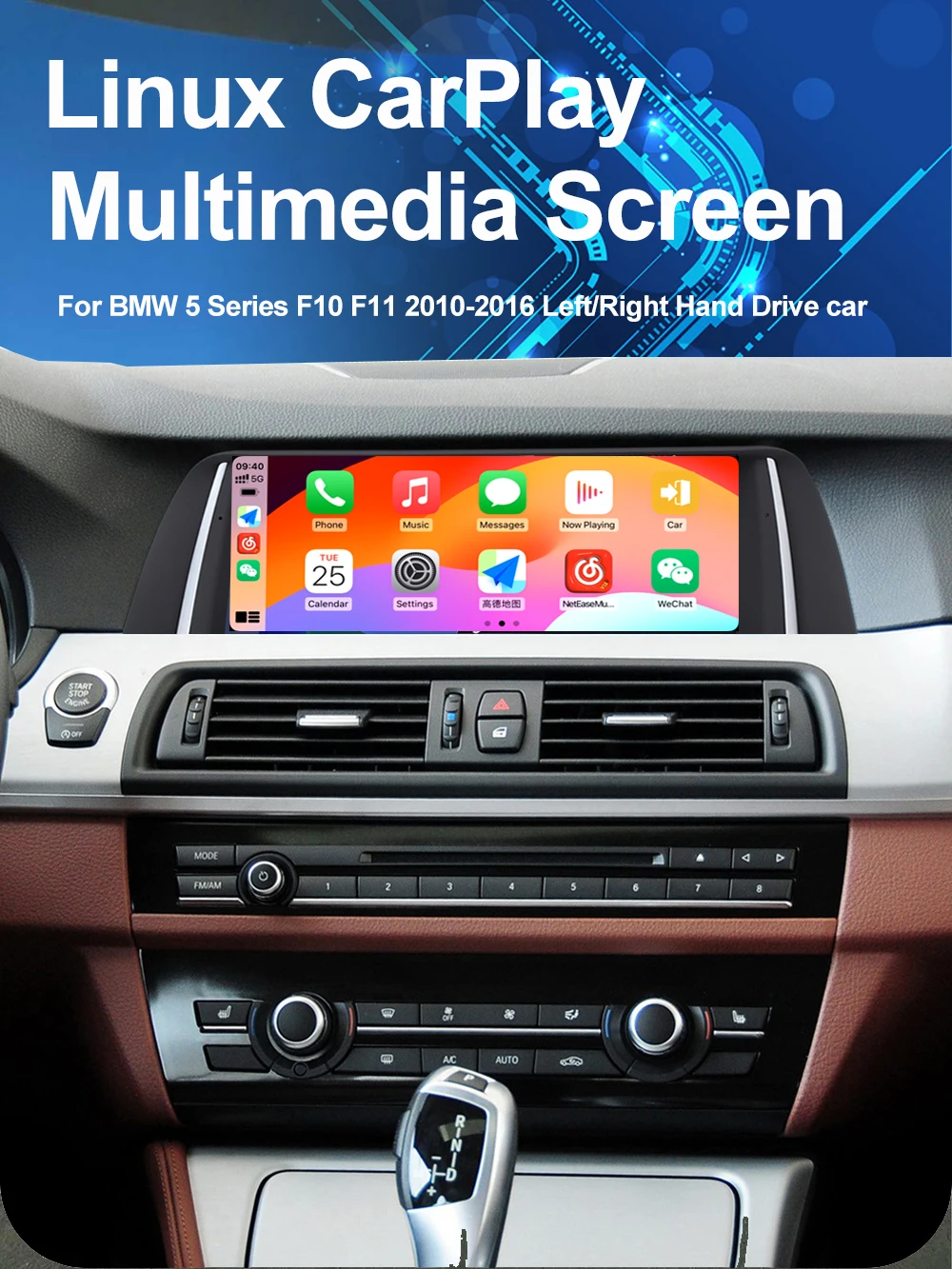
Fits for BMW 5 Series F10/F11 2010-2012
Fits for BMW 5 Series F10/F11 2013-2016
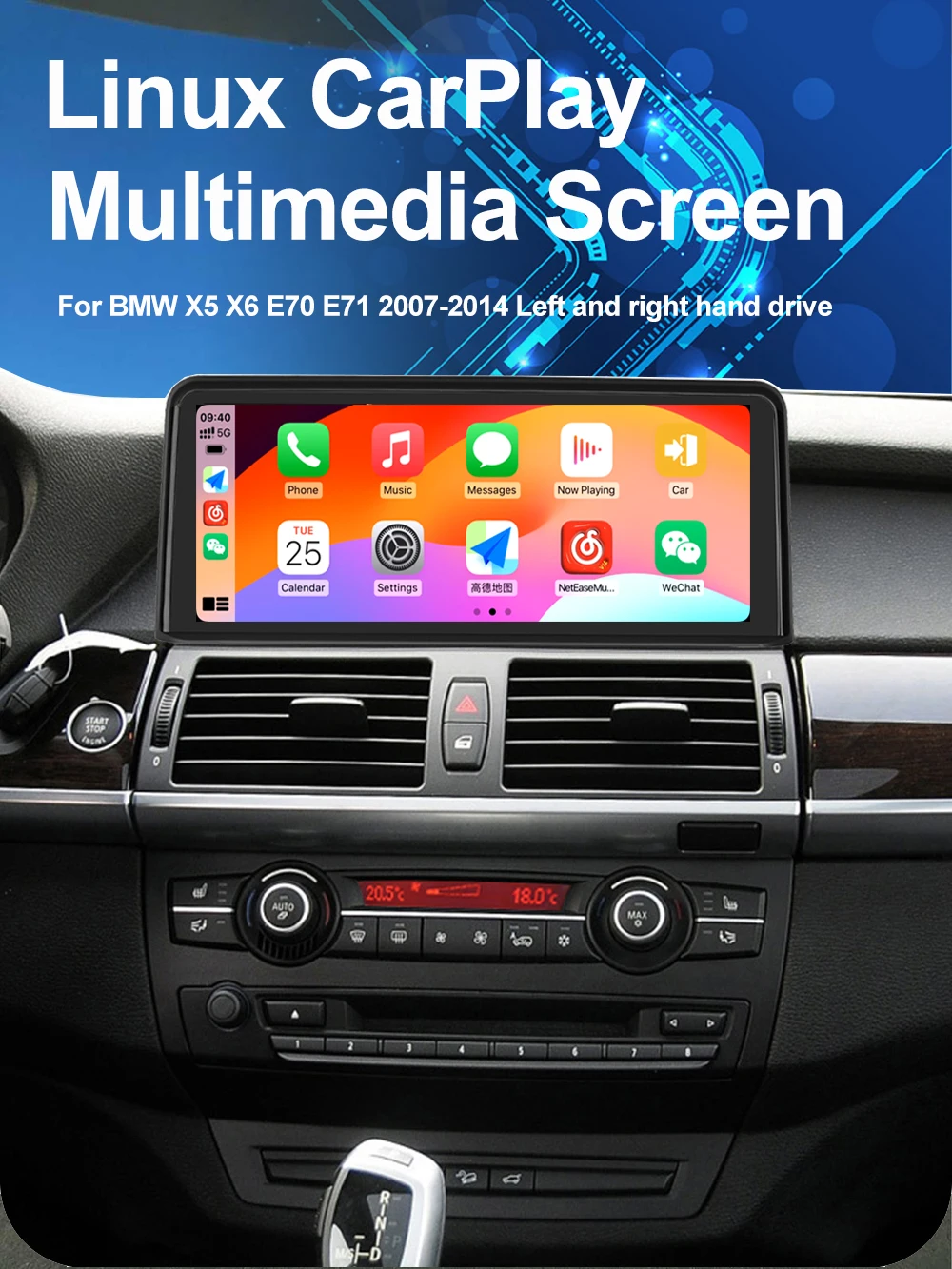
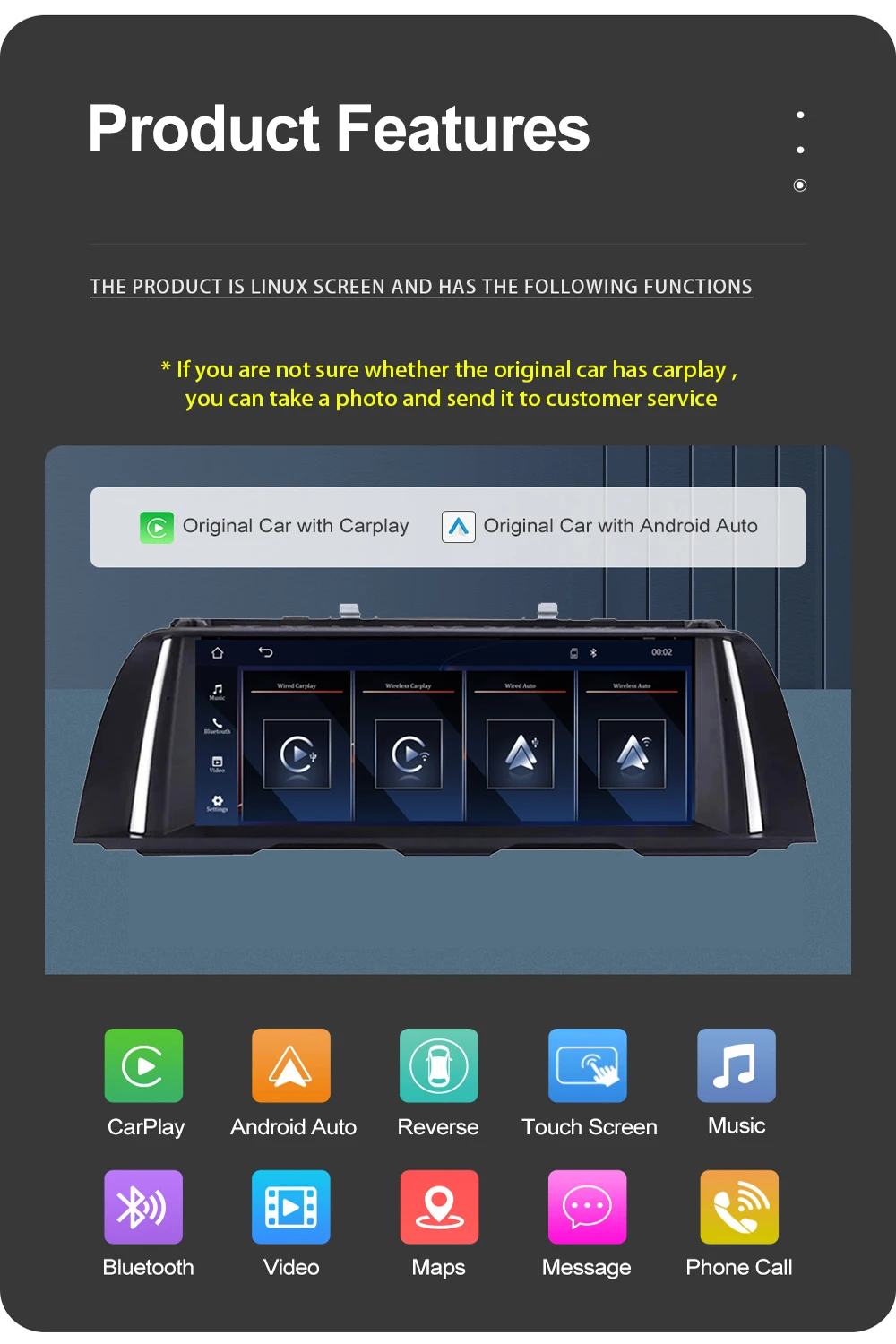
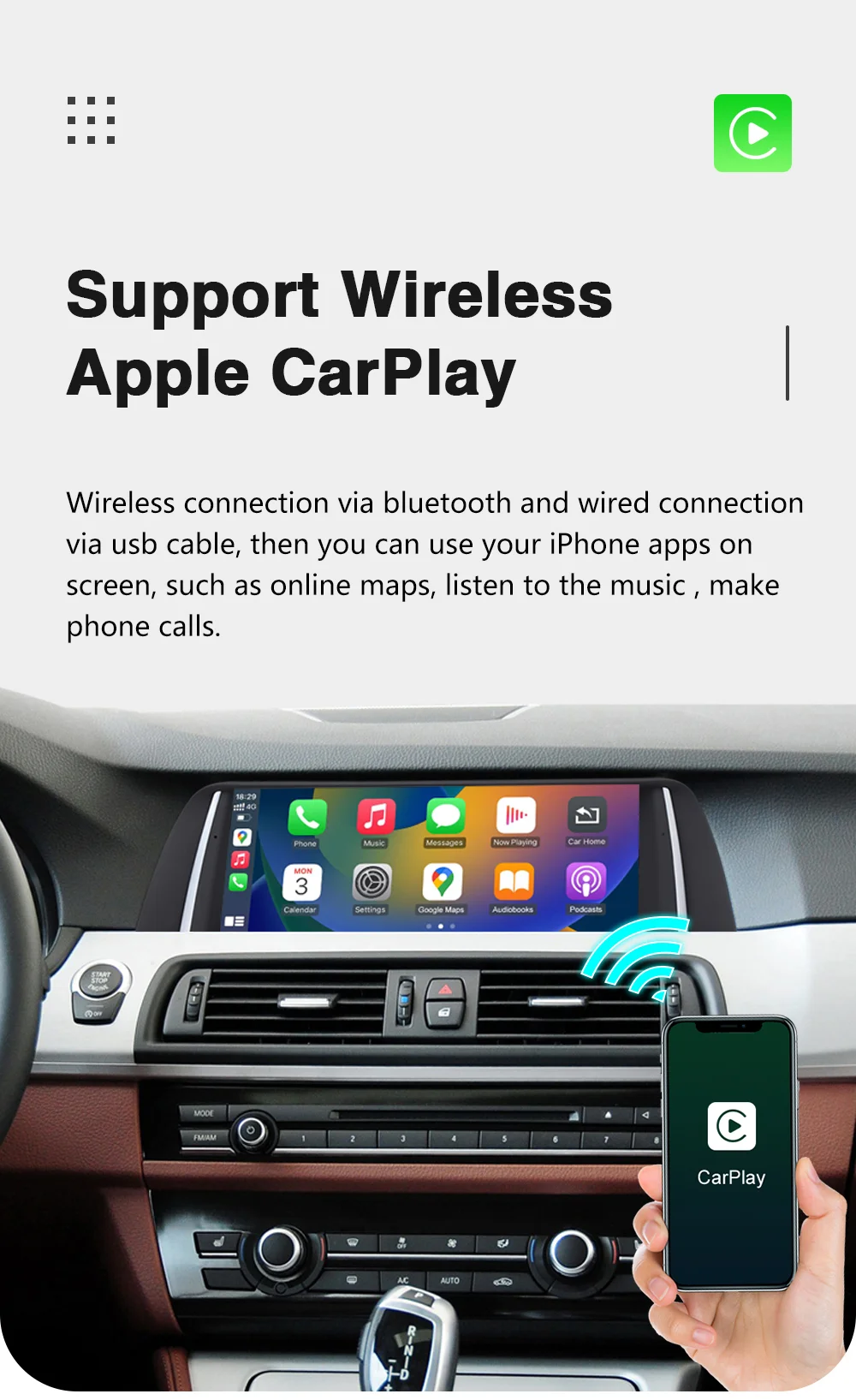
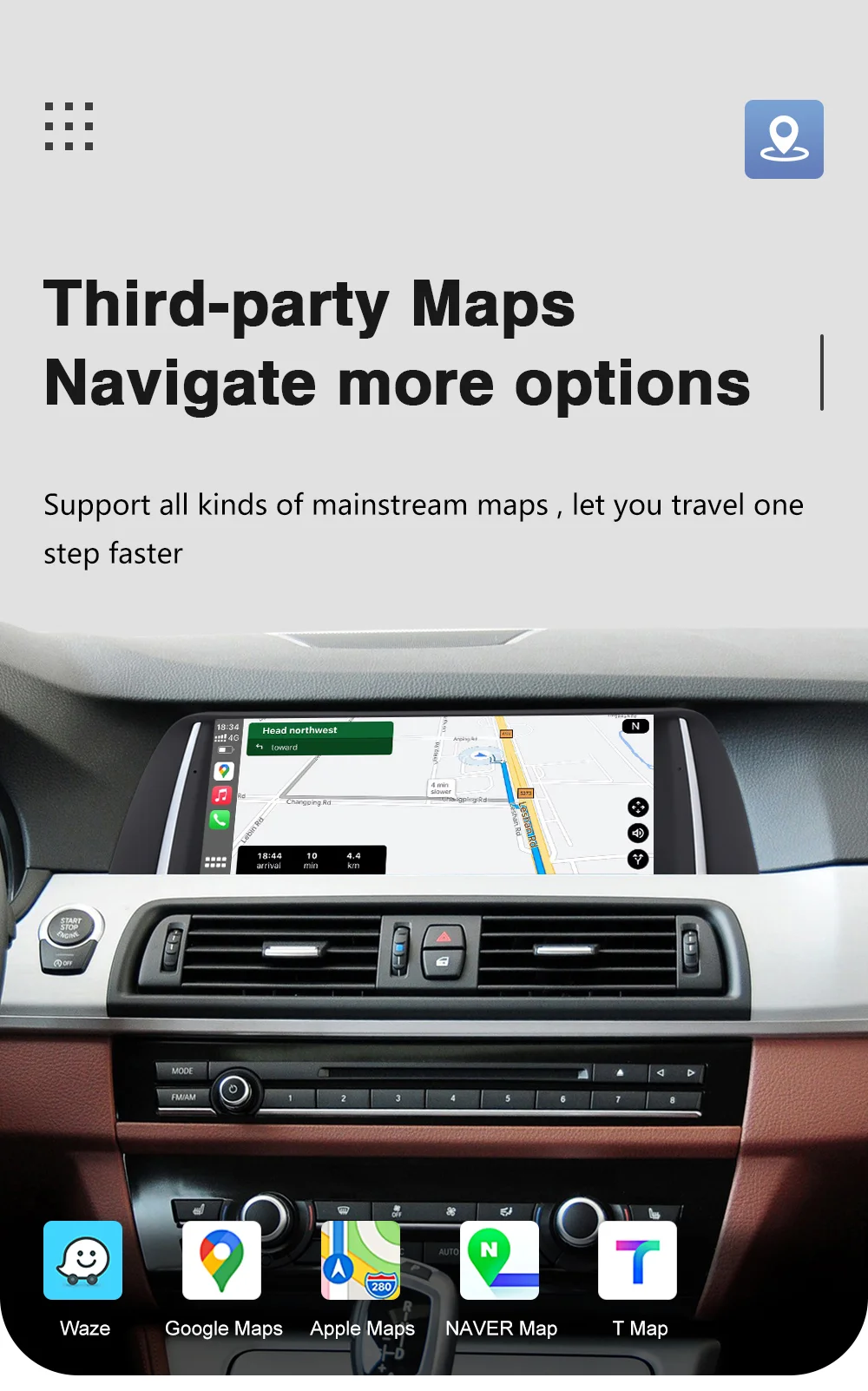
Supports wireless/wired Apple Carplay, wireless/wired Android Auto, wireless mirrorlink for iOS and Android phones, Bluetooth, WI-FI
After Carplay/android auto connects, you can access map navigation, phone contacts, email, notifications, music, and more through voice calling Siri or Google Voice Assistant.
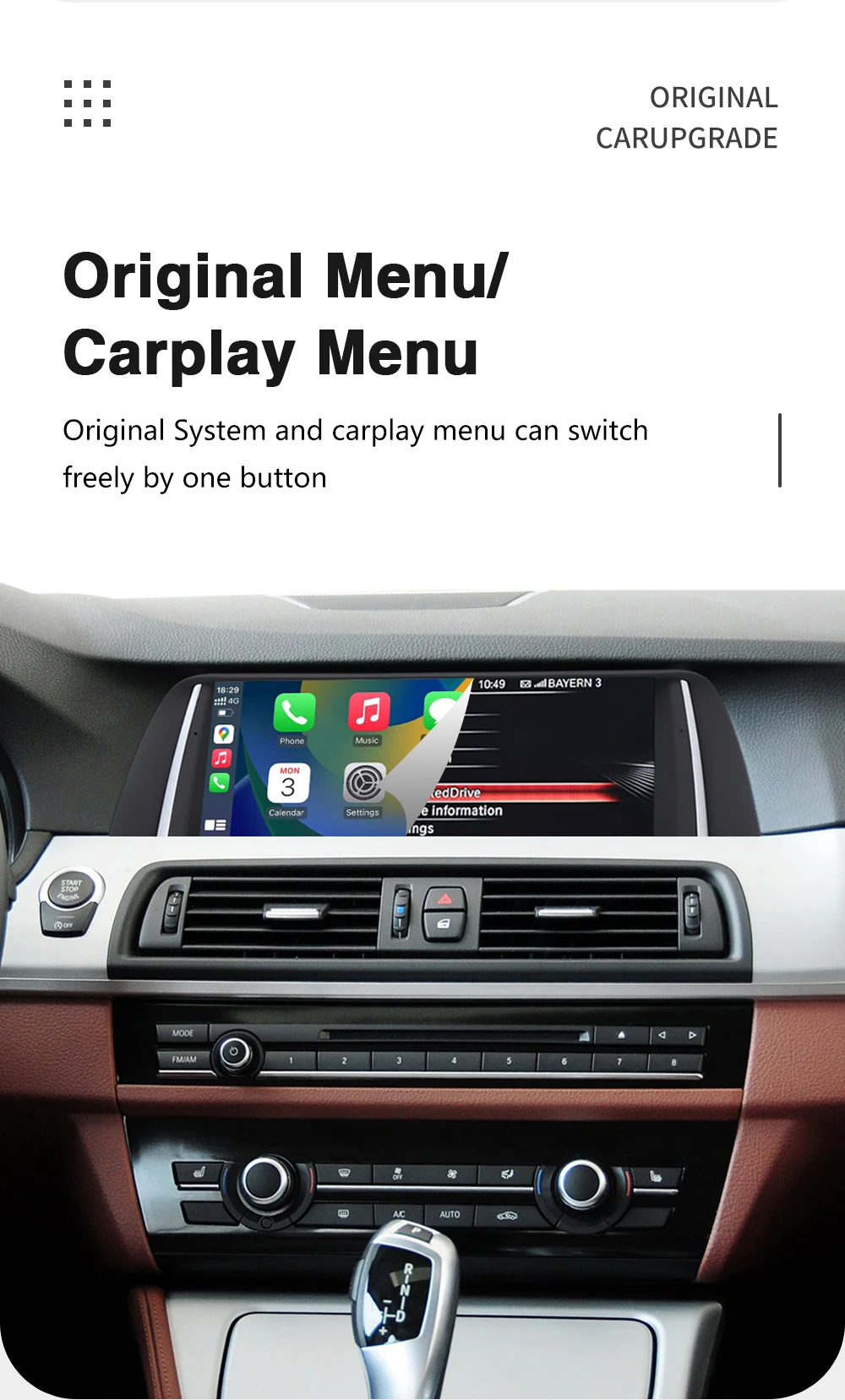
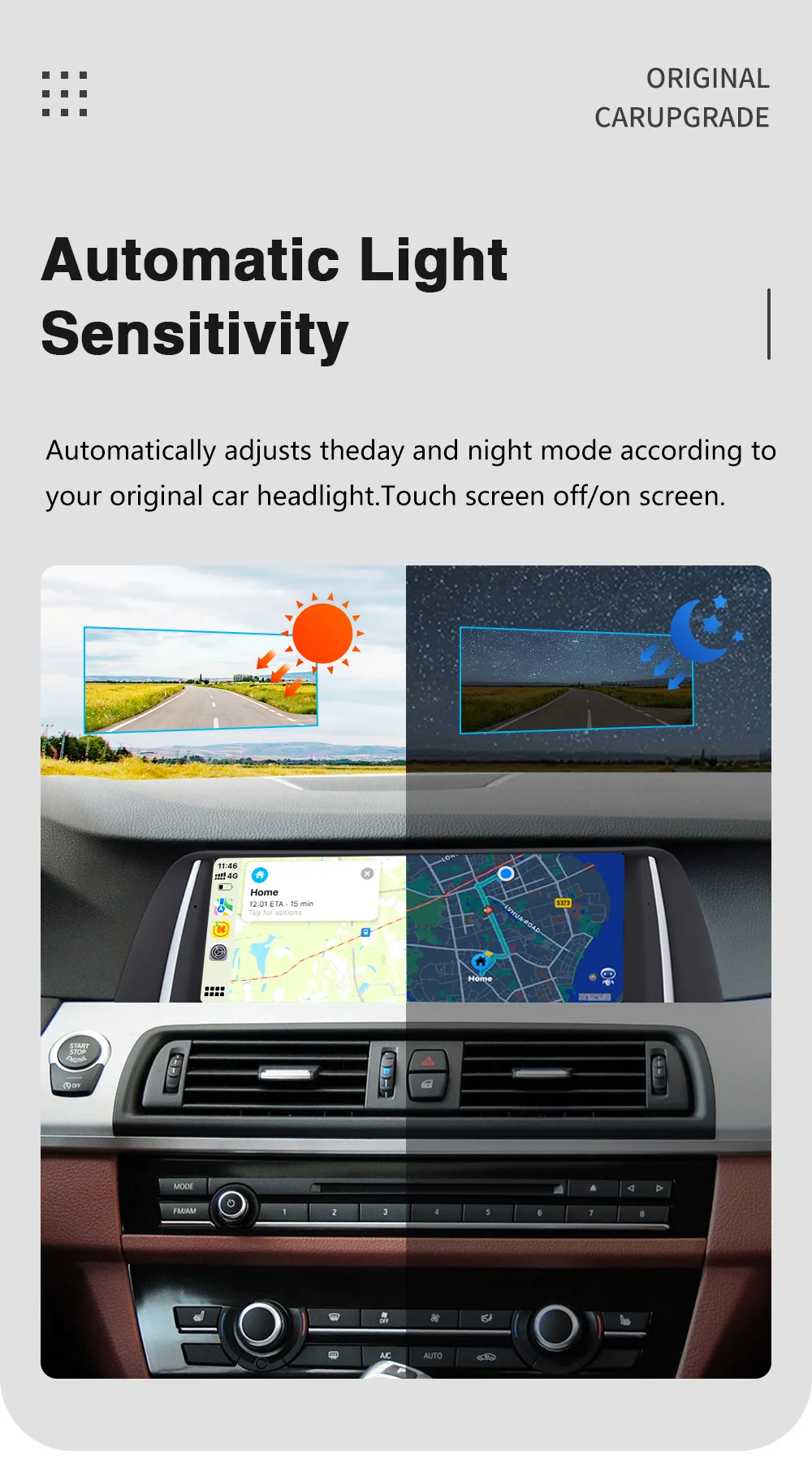
Dual system,One click switch between Linux system and original car system,The upgraded capacitive touch screen retains all original functions and adds Linux system features, greatly enhancing your experience.
For car with CIC system,when you switch to the original BMW system,if the original BMW system does not show normally,You should enter setting-system-Factory (code:8866)-choose the correct car type.
Warning :
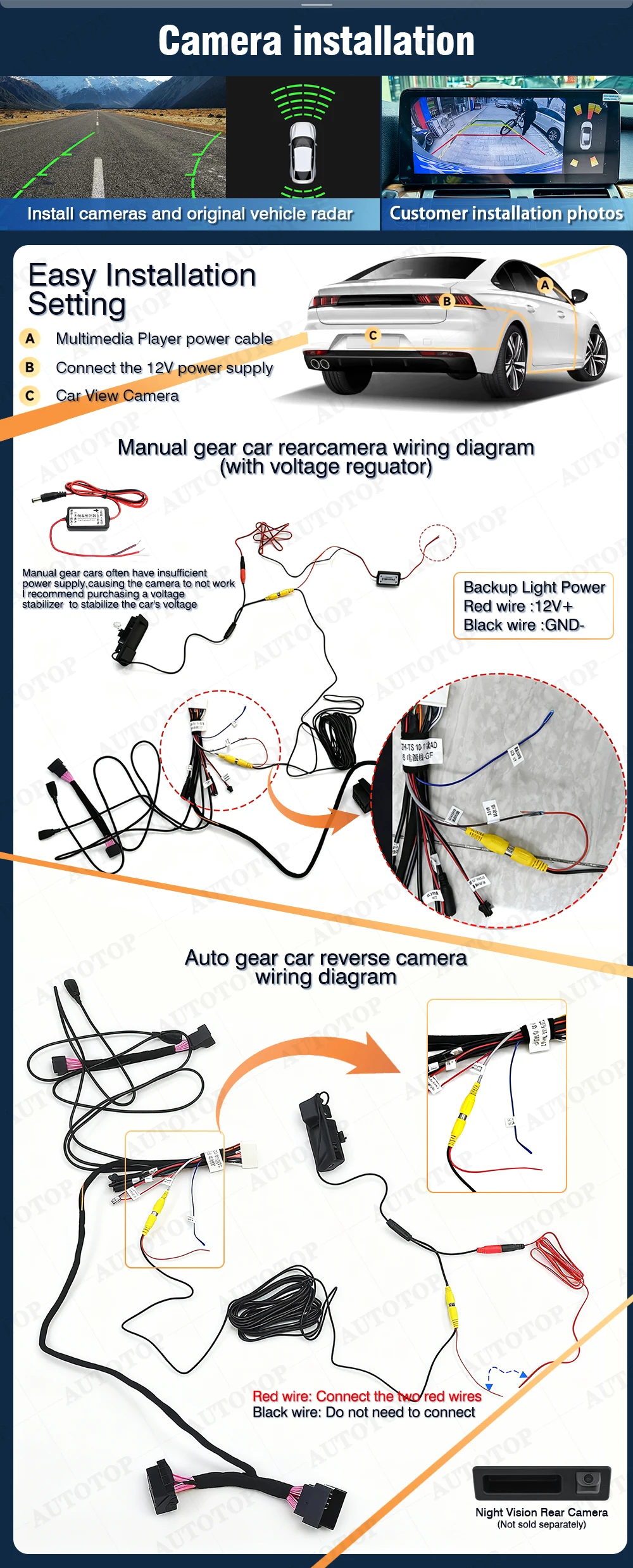
CarPlay Audio Output Rules for BMW E60 E90:
1. If the car has Bluetooth (A2DP support):
CarPlay will prioritize Bluetooth for audio.
2. If the car only has AUX (no Bluetooth audio):
Use the provided AUX cable to connect to the car’s AUX port (usually in the glovebox or center console).
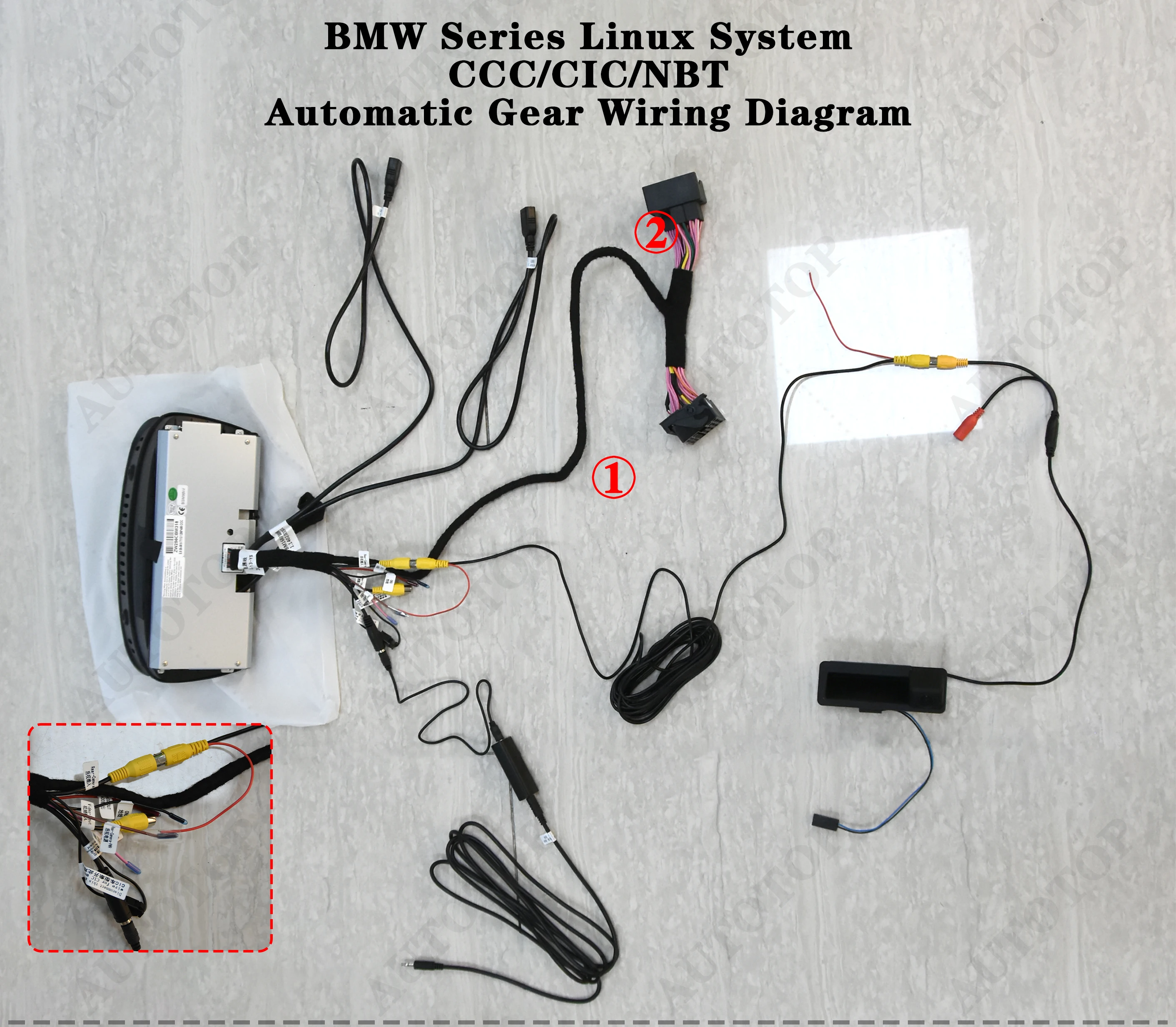
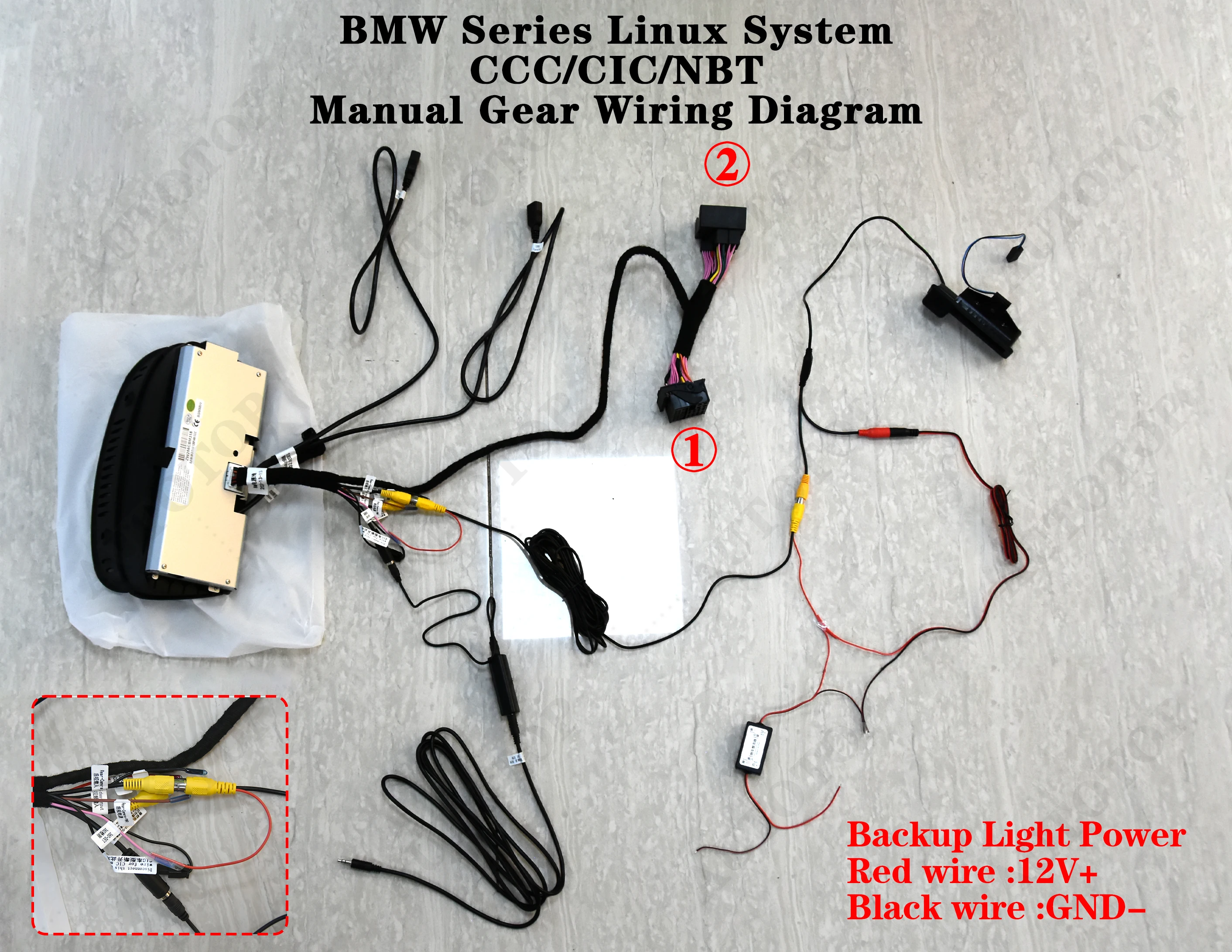
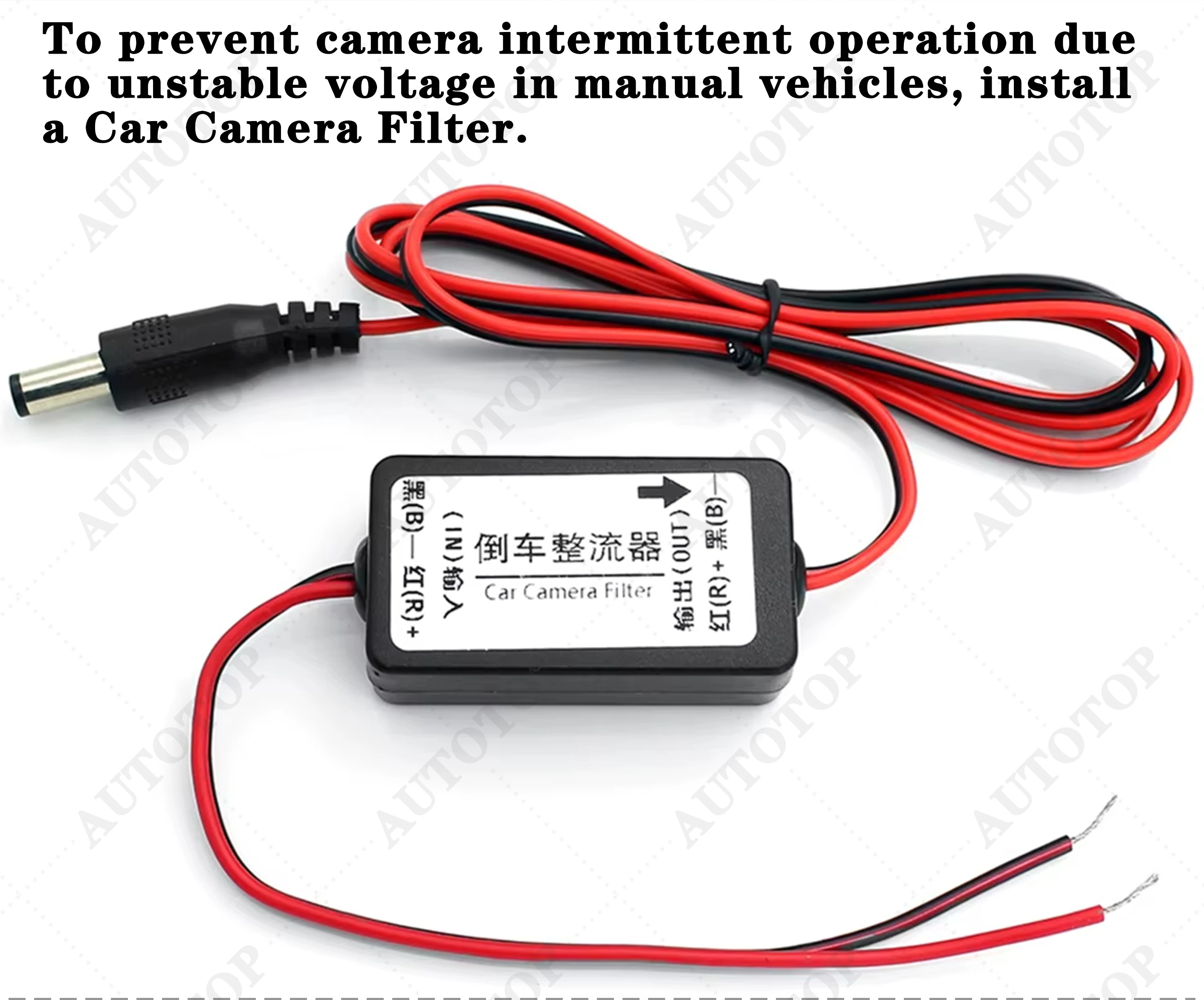
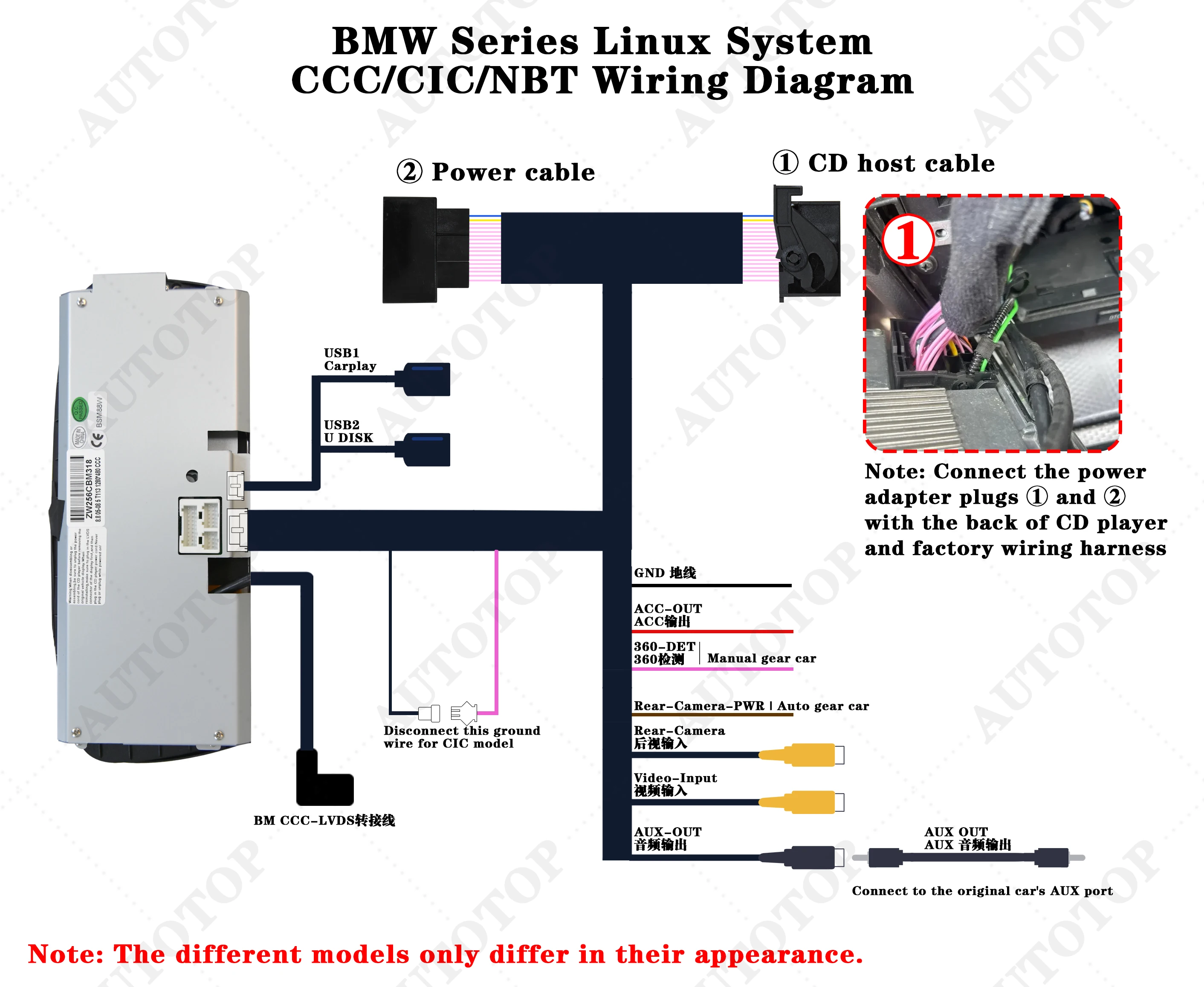
How do I set the basic parameters after installation?
I. You also need to make sure the original optic fiber cable(Green cable) is connected to our power cable,like the below photo.
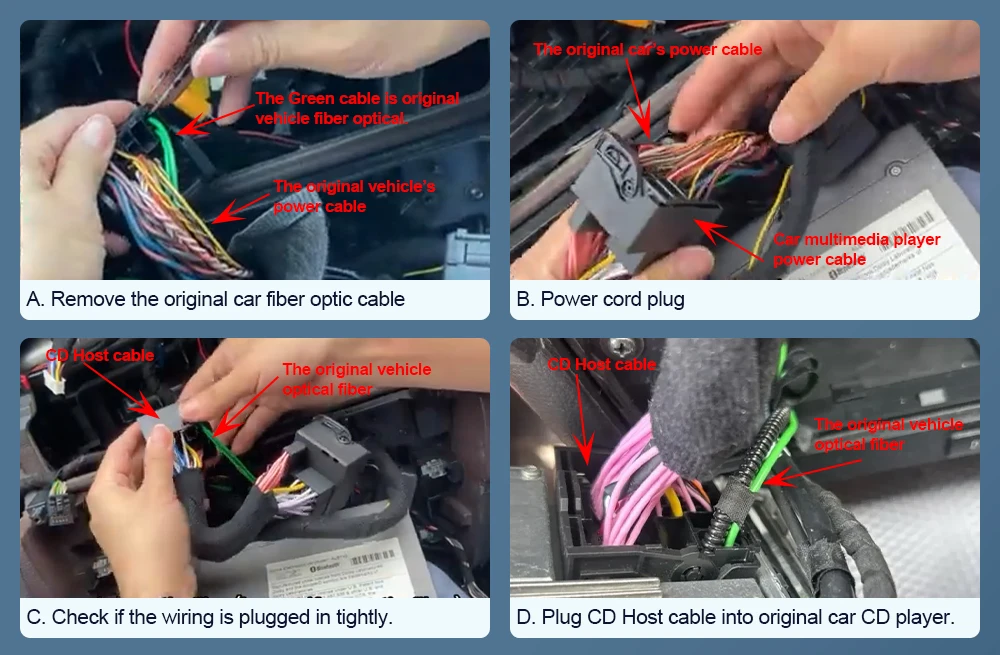
II. If the following situations occur, it's not due to screen damage; you simply need to adjust the screen resolution settings.
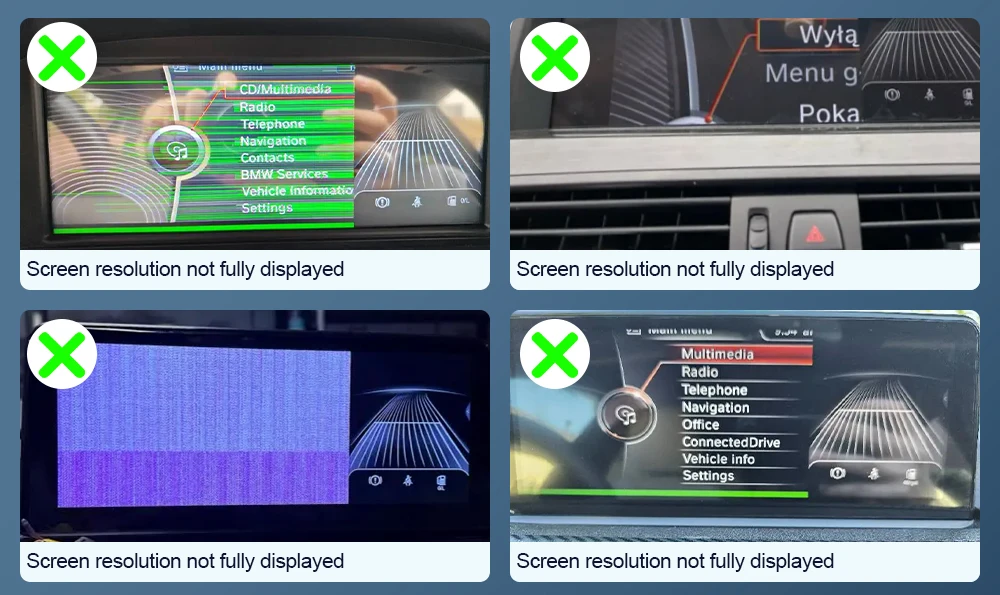
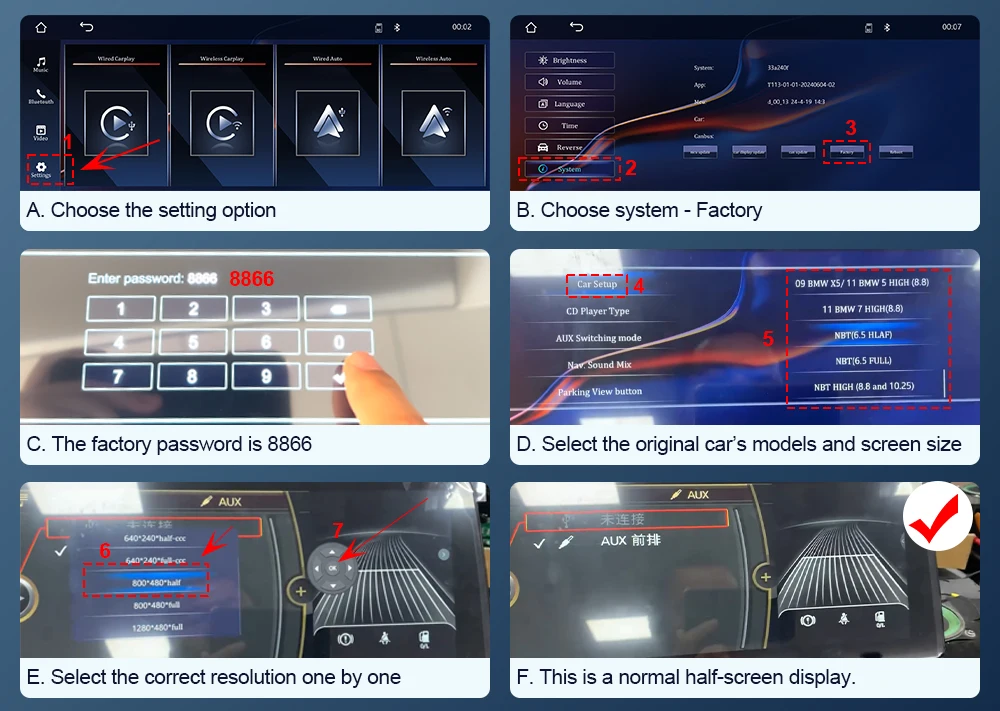
III. Steps for setting screen resolution:
A. Choose the setting option.
B. Choose system - Factory
C. The factory password is 8866.
D. Select the original car's models and screen size
E. Select the correct resolution one by one,Continue until the original vehicle system menu displays correctly.
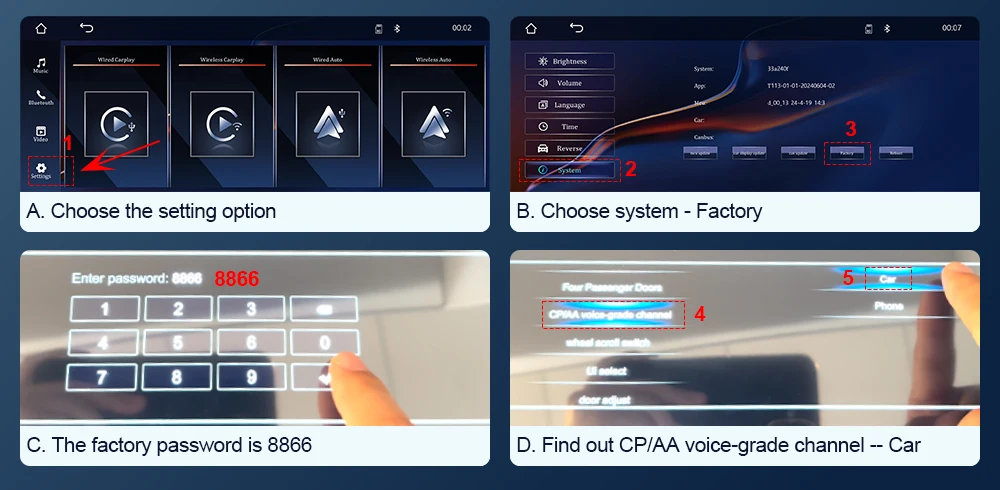
IV. If you're playing music through CarPlay but there's no sound, here's what to do:
If your car’s system menu is NBT,
A. Choose the setting option.
B. Choose the system -- Factory
C. Enter 8866 in the factory.
D. Find out CP/AA voice-grade channel -- Car.
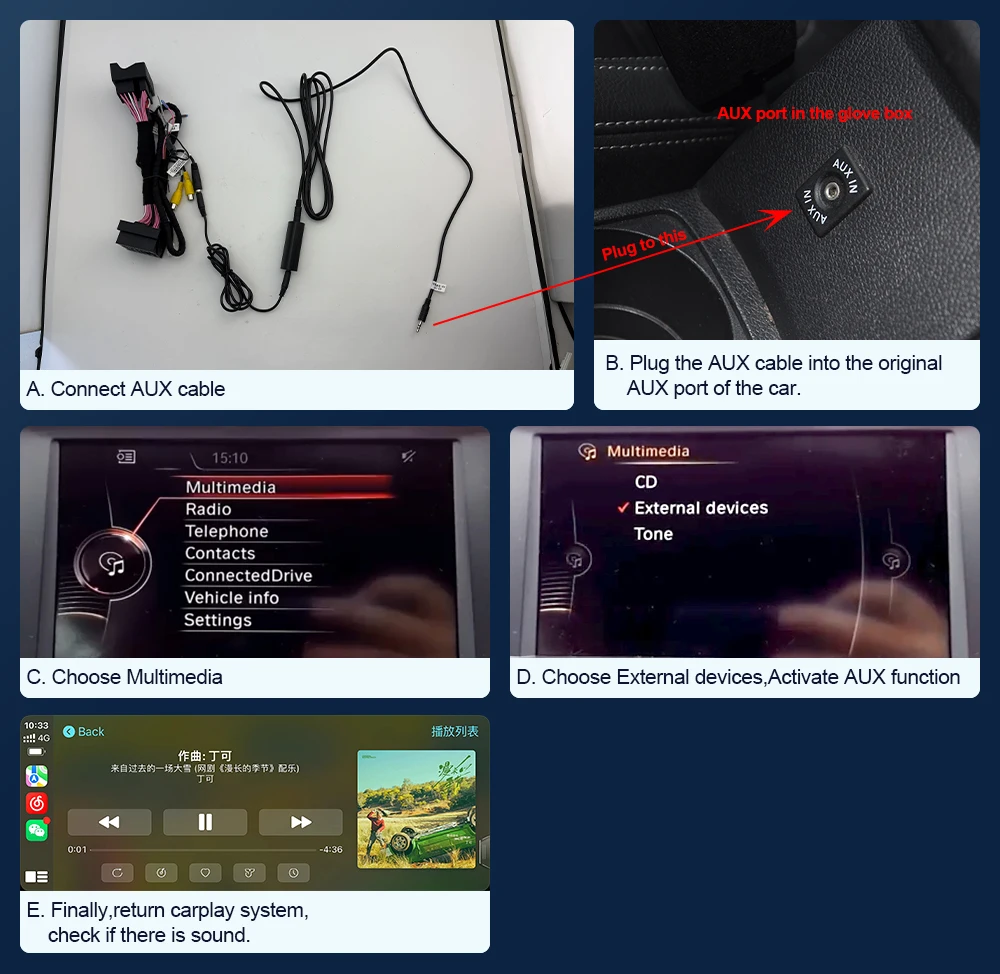
V.If you find that you have successfully connected via Bluetooth, but there is still no sound in the CarPlay system, you will need to purchase an AUX cable locally.
A. Connect AUX cable
B. Plug the AUX cable into the original AUX interface in the glove box.
C. Choose Multimedia.
D. Choose External devices,Activate AUX functionChoose the AUX front.
E. Finally,return carplay system,check if there is sound.
F. If there's still no sound, try connecting the AUX cable to your phone's AUX port to test whether the phone produces sound.
If you hear sound, the car's AUX port is functioning properly.
If there's no sound, the car's AUX port may be faulty and require repair.
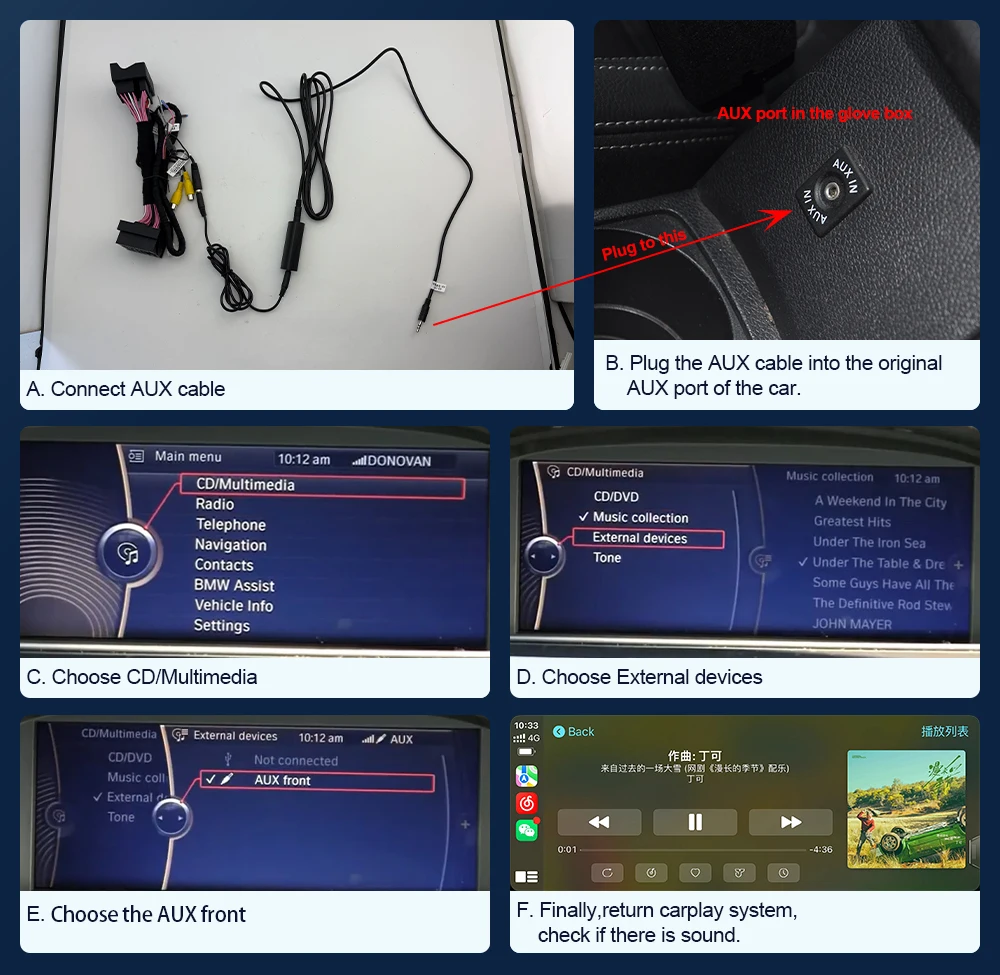
VI.If your car’s system menu is CIC,
A. Connect AUX cable
B. Plugthe AUX cable into the original AUX interface in the glove box.
C. Choose Multimedia.
D. Choose External devices,Activate AUX functionChoose the AUX front.
E. Finally,return carplay system,check if there is sound.
F. If there's still no sound, try connecting the AUX cable to your phone's AUX port to test whether the phone produces sound.
1. If you hear sound, the car's AUX port is functioning properly.
2. If there's no sound, the car's AUX port may be faulty and require repair.
Verzending & levertijd
Verzending & levertijd
Gratis verzending op het volledige assortiment, zonder minimum bestelbedrag. Je ontvangt een verzendbevestiging met track & trace zodra je bestelling onderweg is. Zie ons Verzendbeleid voor alle details.
Retourneren
Retourneren
Je hebt 30 dagen bedenktijd vanaf het moment dat je je bestelling hebt ontvangen. Zie ons Terugbetalingsbeleid voor de voorwaarden.


Beoordelingen
Strak en krachtig
Mooie strakke kookplaat, werkt perfect. Water kookt verrassend snel en de bediening reageert direct.
Makkelijk schoon te maken
Duidelijke bediening en het oppervlak veeg je zo schoon. Inbouwen was eenvoudiger dan verwacht.
Doet wat het moet doen
Precies zoals beschreven. Eén ster eraf omdat de handleiding vrij summier is, verder prima product.